Supergrid - a new function to easily add grids to base R plots with major and minor grid lines, fully customisable and pseudo theming for re-use, super easy to use, read on to learn more!
Supergrid - a new function to easily add grids to base R plots with major and minor grid lines, fully customisable and pseudo theming for re-use, super easy to use, read on to learn more!
In part 2 of this guide looking at supergrid() - a new function to easily add grids to base R plots with major and minor grid lines - this part shows you how to create and add themes to re-use the same styles for different plots. Read on to learn more!
Principal component analysis (pca) is a great dimension reduction method to reduce large datasets to a smaller set, keeping the key, or principal components. R offers functions to carry out pca with ease, but creating good looking biplots in R can be quite involved, or require additional packages.
I've written a new, better biplot function, which makes creating beautiful looking biplots a breeze. And, its all written in base R, so does not require any additional packages to be installed. Just load the script and start plotting!
Programming loops are a way to repeat blocks of code to perform the same task over and over again. R offers the same functionality to perform repetitive tasks, allowing to write less and more efficient code.
This guide follows on from my introduction to loops guide, and shows you have to use nested loops in R. A nested loop is a loop within a loop.
Today I presented at the British Ecological Society Palaeoecology Group "Masterclass in R" seminar series on using R for mapping and spatial analysis.
If you couldn't make the presentation and would like to see what I spoke about, as well as access the full R code, read more for details!
Running R on Linux with a high-DPI display and finding that the default plot window is too small and looks terrible?
Click read more to find out how to fix it!
Programming loops are a way to repeat blocks of code to perform the same task over and over again. R offers the same functionality to perform repetitive tasks, allowing to write less and more efficient code.
This guide introduces you to loops in R, explains how to write them, including for loops and while loops, and some best practice for writing efficient loops. I'll also take a look at vectorization in R, explaining what it is and why you should used vectorized functions where possible. This guide will introduce you to the basics of programming and automating tasks in R.
Ever wanted to try R, but wasn't sure where to start? Or perhaps you are unsure of what R is and what it can do?
New for 2021, I have completely rewritten, revised and greatly expanded my introduction to R guide. Additionally, I have added additional guides for importing data into R, and to give an overview of R graphics and creating plots (see below).
The introduction guide is now much more comprehensive, and includes everything you need to get started with R! Check them out:
| Part 1: Introduction to R | An introduction to R - what is R, where to get R, how to get started using R, a look at objects and functions, an overview of data structures, and getting started with manipulating data. |
| Part 2: Importing data into R | This guide shows you how to import your existing data into R from .csv or Excel files. |
| Part 3: An overview of graphics in R | This guide gives you an overview of some of the graphical capabilities of base R to produce high quality plots. |
In the second part of this expanded guide series introducing you to R, this guide shows you how to import data into R from csv files and Excel spreadsheets.
Of course, R can import many other data types, but these two are very common and will get you started!
In the final part of this expanded guide series introducing you to R, this guide gives you an overview of the graphics systems in R, and gets you started creating plots using base graphics.
Bathymetric maps are topographic maps of water bodies (oceans, seas, lakes, rivers), equivalent to Digital Elevation Models (DEMs), except for submerged terrain.
Useful in their own right, bathymetric maps can also improve the look of maps created using DEMs, giving depth to water features.
This 2-part guide shows you how to create bathymetric maps in R using freely available data from online sources, how to import and plot this in R. Part 2 explores using different colour schemes/palettes for really effective maps. Read on for more!

Part 2 of the guide for making bathymetric maps in R. This part focuses on creating effective colour schemes using break points to control the colour.

Digital Elevation Models (DEMs) are a 3D representation of the terrain, and can form the basis for creating maps, or carrying out spatial analysis.
DEMs come in many shapes and sizes, from commercial DEMs with 1 m spatial resolutions, to freely available DEMs with 30 m to 90 m resolutions.
In this guide, I'll show you some of the freely available DEMs, where to obtain the data, and how to use them in R. Read to find out how!
R has some great GIS capabilities thanks to an extensive range of packages for handling GIS data. I have previously shown some of this capability for creating climate data maps, although I have not explored mapping basics, until now.
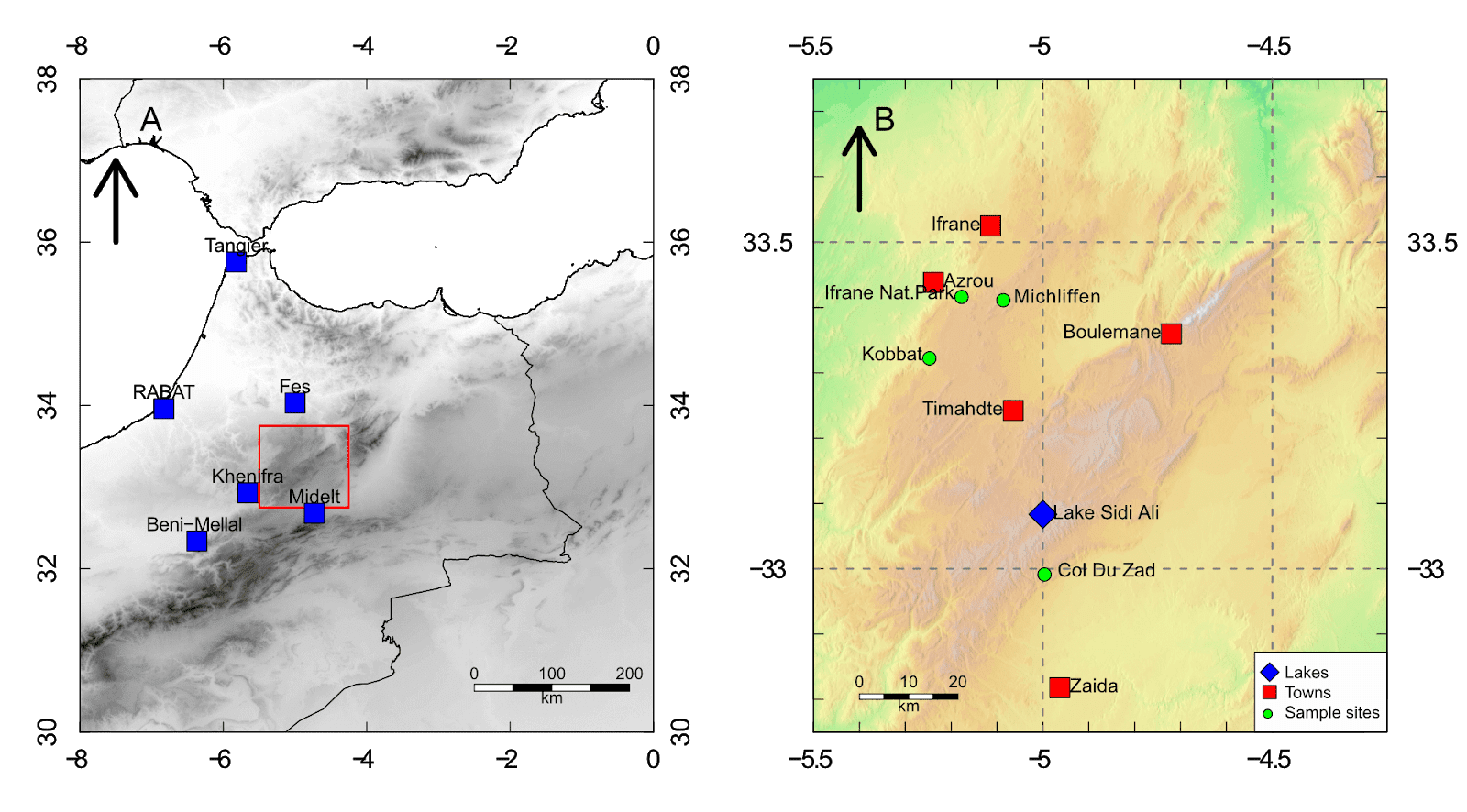
This guide will show you some basic techniques for creating simple, yet effective location maps in R, using freely available data. Stop using screenshots of Google Earth for your location maps, and start making your own! No GIS skills are needed. Read on to see how the create the map below!
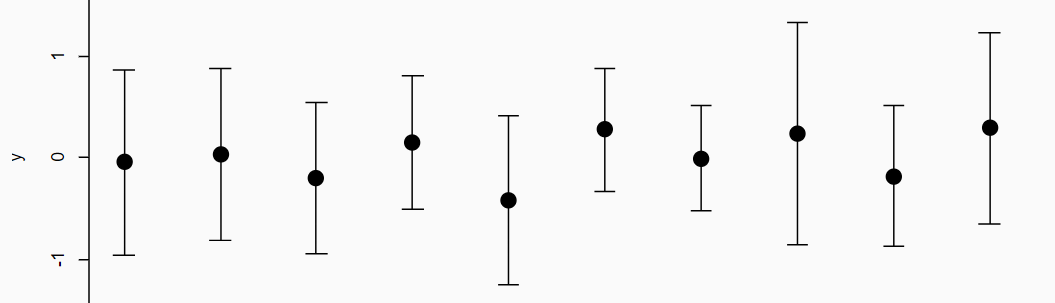
R has no error bar function? Surely not!
Well, yes and no. Error bars can be added to plots using the arrows() function and changing the arrow head. You can add vertical and horizontal error bars to any plot type. Simply provide the x and y coordinates, and whatever you are using for your error (e.g. standard deviation, standard error).
Read on to see how this is done with examples.
R has loads of useful, but little known functions that can make life a little bit easier. As part of the "quick guide" series, this quick guide takes a look at opening files from within R - no more opening up file explorer and hunting around for that file!
In my most recent published paper, I analysed the effects of incoming solar UV-B radiation on the geochemistry of Atlas cedar pollen, focused on the Middle Atlas Mountains in Morocco. The study area was relatively small, with sample sites fairly close together.
The UV-B data was obtained from the glUV: Global UV-B radiation dataset, which combines data from NASA's Ozone Monitoring Instrument (OMI) onboard the Aura spacecraft, into grid cells containing average erythemally weighted estimates of daily UV-B radiation. You can read full details of the methods used in the associated research paper (Beckmann et al. 2014) (Available open access).
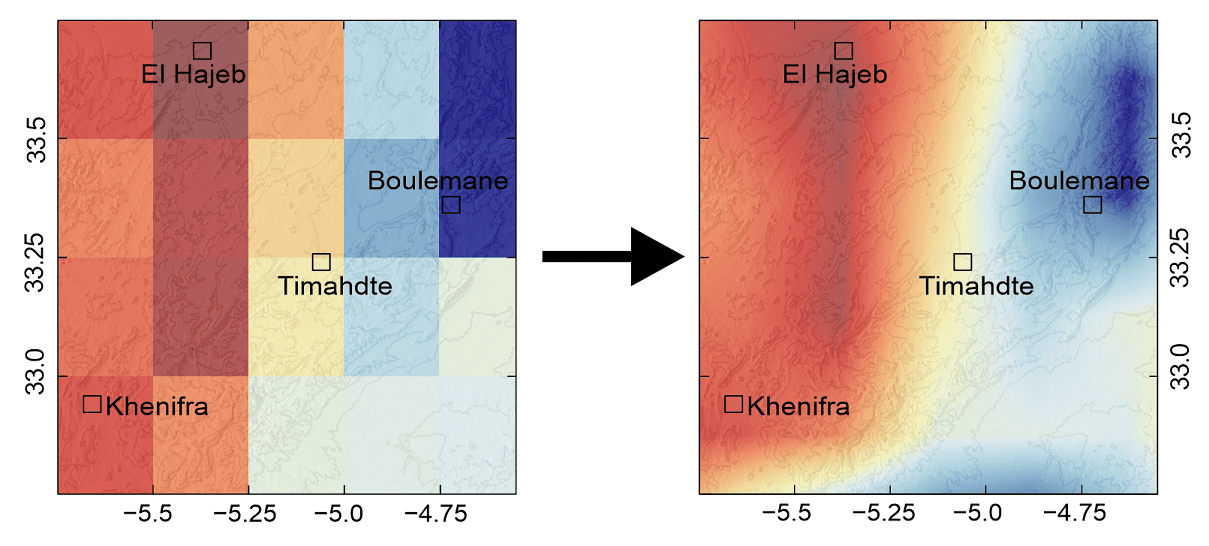
Gridded datasets are an excellent source of data for doing global or macro-scale studies. However, if working in a relatively small area, you may find that your study area is covered by just a few grid cells due to the often low resolution of gridded data. And this can sometimes make it more difficult to carry out analysis.
To overcome the problem, you can interpolate the data to increase the resolution. After interpolation, the gridded data will go from looking like the image on the left, to looking like the image on the right, which is much more detailed for the study area.
Read on to find out how to do this in R!
Climate diagrams are useful tools which provide a visual summary of average climate conditions for a place over a specified period of time. This guide will explain the different parts of a Walter and Lieth climate diagram, and show you how to create one in R using the "climatol" package. This package provides a really quick and easy way to make good-looking Walter and Lieth climate diagrams. But, this guide will also show you how to create one from scratch (no packages needed!).
R has some really cool little features to make life easier. A couple of really useful features for dealing with long text or character strings are abbreviate() and strtrim(). The first will automatically abbreviate character strings to a specified number of letters, and the second will trim a long character string to a specified number of letters. These functions can be really useful if you need to shorten text - for example, in plot axes or legends.
This quick guide will show you how to use both of these functions in R, and also take a look at paste() for further text manipulation.
R has powerful graphical capabilities, and its possible to create almost any kind of graph, chart or plot. It also has powerful annotation options, allowing you to write and draw all over your plot, using labels, shapes, highlighting, and more.
You might have previously created plots in R, and annotated them using a different graphic program (e.g. Photoshop, Corel Draw etc.). But, you could just do it all in R! This guide will show you some of the ways in which you can scribble on your plots, which can be useful for keeping notes, or to highlight certain features of your data...